Turning my GTX 1080 into a local AI agent

After building my self-hosted AI platform, I started thinking about some of the even older hardware I still had. I’d already found useful jobs for several GPUs, but my EVGA GTX 1080 was sitting around doing nothing. I wanted to see whether I could put it back to work.
This time, I wanted an agent that could help with my homelab. Something I could ask to connect to a server, deploy a container, work through a problem, and check that the service actually worked. I’ve been calling this SlopOps, which seemed like a pretty appropriate name once I watched some of these attempts.
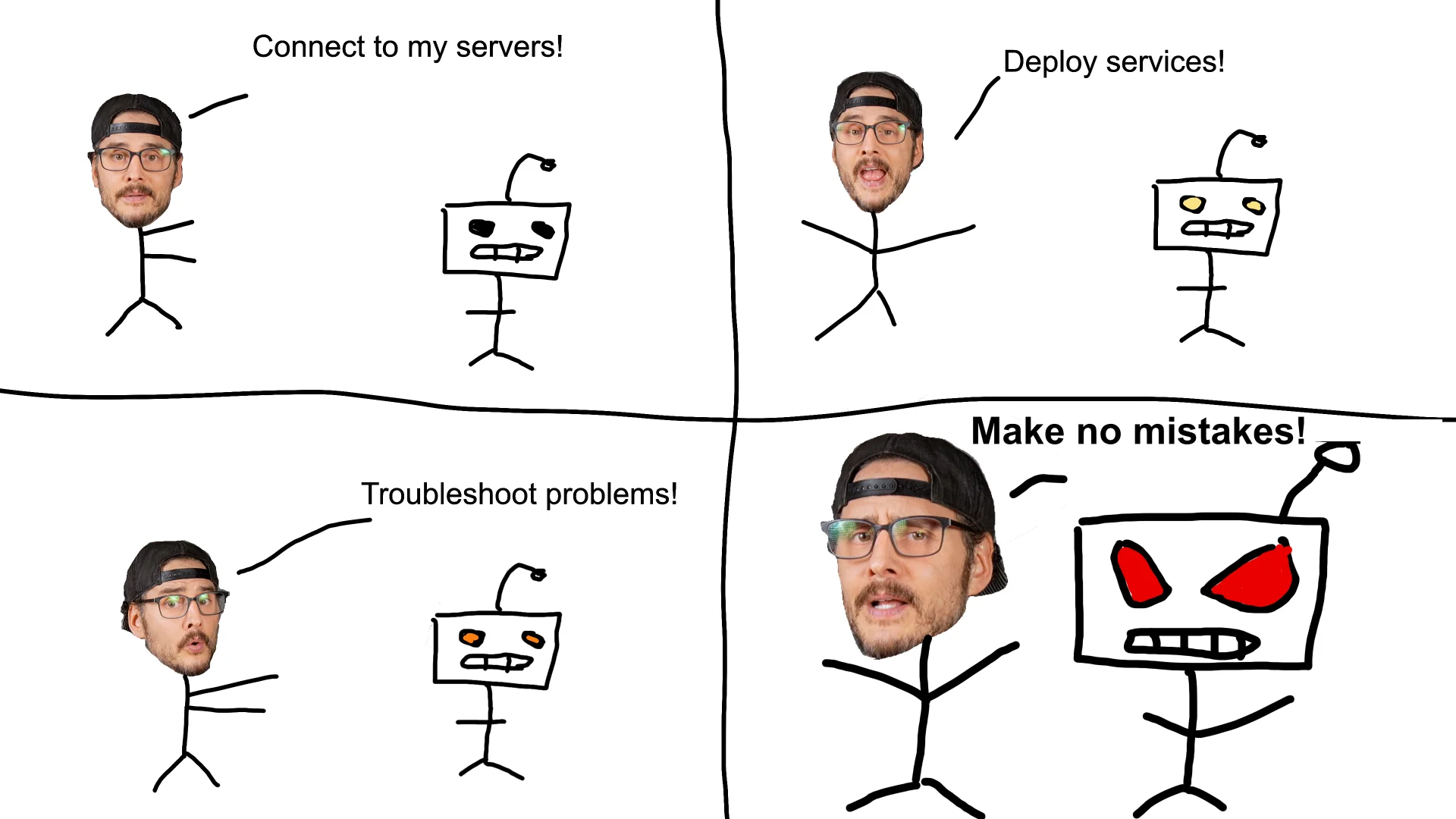 The SlopOps job description seemed simple enough.
I tested three Qwen models using llama.cpp and GitHub Copilot CLI. The smallest generated text at around 82 tokens per second and couldn’t finish the deployment. The largest took more than three minutes to get started, then finished the job before the model I expected to be the sweet spot.
The old PC I used
The GTX 1080 came out in May 2016. Mine is the EVGA FTW Edition, with a factory overclock, a custom cooler, 2,560 CUDA cores, 8 GB of GDDR5X, and of course RGB. I paid around $680 for it, which felt like way too much money to spend on a graphics card at the time.
I used it for gaming, streaming, and video editing before eventually moving to an RTX 3090. For this experiment, I initially considered connecting it to a newer machine through a GPU dock. Then I figured I might as well dust off the old PC I built with it.
| Component | Hardware |
|---|---|
| GPU | EVGA GeForce GTX 1080 FTW, 8 GB GDDR5X |
| CPU | Intel Core i7-8700K |
| Motherboard | ASUS ROG Maximus X Hero |
| Memory | 32 GB G.SKILL Trident Z RGB DDR4 |
| Storage | 1 TB Samsung 990 PRO NVMe |
| Case | NZXT S340 Elite |
| CPU cooler | DeepCool Captain 240EX |
The machine is called Voyager, and I’m running Ubuntu Server on it. Other than the newer NVMe drive, this is mostly 2016 and 2017 hardware. The 32 GB of system RAM ended up being useful once I started trying models that were much too large for the GPU’s 8 GB of VRAM.
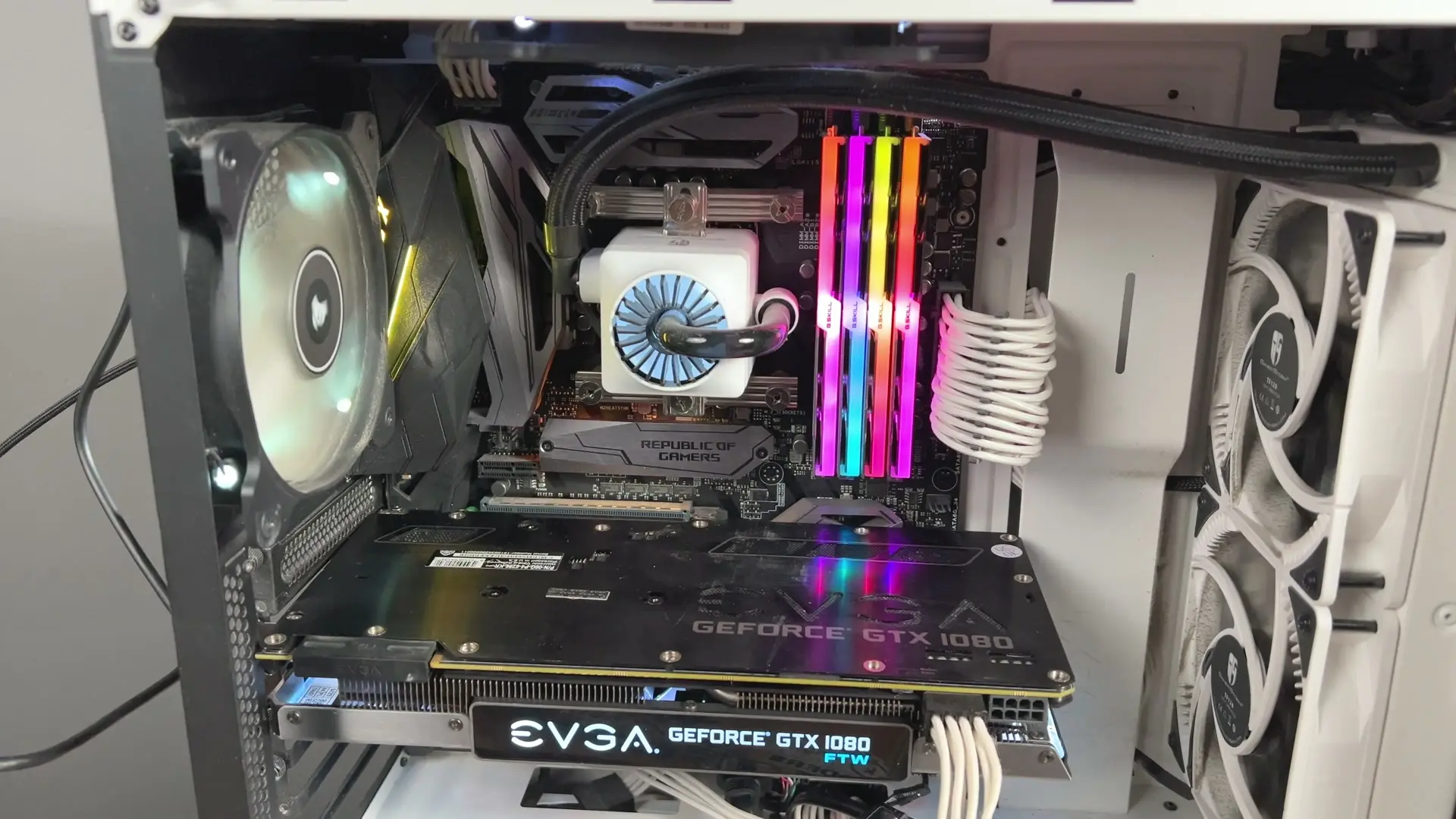 Voyager uses the GTX 1080 and 32 GB of system RAM, with a newer NVMe drive for storage.
Why I used llama.cpp
In my previous project, I used vLLM to serve most of my models. The GTX 1080 needs a different approach. It’s a Pascal GPU with no Tensor Cores, and its CUDA compute capability is 6.1. Current vLLM NVIDIA support requires compute capability 7.5 or newer.
I used llama.cpp, which let me run these models with CUDA on the GTX 1080 and control how much of the work stayed on the GPU. It also gave me a way to use system RAM for a model that wouldn’t fit entirely in VRAM.
There is a CUDA version detail to pay attention to with Pascal. CUDA 13 removed the ability to compile new GPU code for this architecture. I used a CUDA 12.9 build for this project. NVIDIA’s compatibility guidance explains the distinction between compiling for an older GPU and running an application that was already built with a compatible toolkit.
Using system RAM gave me more room for model weights, but it also meant the CPU had work to do. I wanted to find out whether a larger model could make up for that slower response by making better decisions during an actual task.
Giving it a real homelab task
GitHub Copilot CLI ran on my Mac, with llama.cpp on Voyager serving the model. Copilot handled the tools, including reading files and running SSH commands against a separate test VM in my colo. The model inference happened on my own hardware, while the agent used the network to deploy the container.
Copilot CLI supports custom model providers, including OpenAI-compatible endpoints. The endpoint needs to support the agent’s tool calls and streaming, so being able to answer a chat message is only the first part of getting this working.
For the deployment, I chose OpenSpeedTest. It’s a browser-based network speed test that I could run in Docker and verify from my own machine. The task was small enough to follow on screen, but it still required the model to read instructions, find the right server, choose the right commands, and check the result. I’ve replaced the test machine’s address with a placeholder in the prompt below.
1
2
3
4
5
6
7
8
9
First, read AGENTS.md and the applicable agent instructions so you
understand how to access my servers over SSH.

Deploy openspeedtest/latest:latest as a Docker container on my test
machine at <test-vm-address>.

Make it accessible from this machine, ensure it starts automatically
after a reboot, and verify that it's working. Don't disrupt any
existing services. Let me know the URL when you're done.
My instructions and SSH configuration already contained the information the agent needed to connect, including which SSH identity to use. I gave each model the same deployment request and test machine, but left the actual commands up to it.
I watched llama.cpp metrics in Grafana, CPU and GPU activity in btop, and the test VM from another terminal. Once a model said the deployment was ready, I could open the URL and run a speed test myself. I also asked the models to explain my home-ops repository as a separate follow-up task.
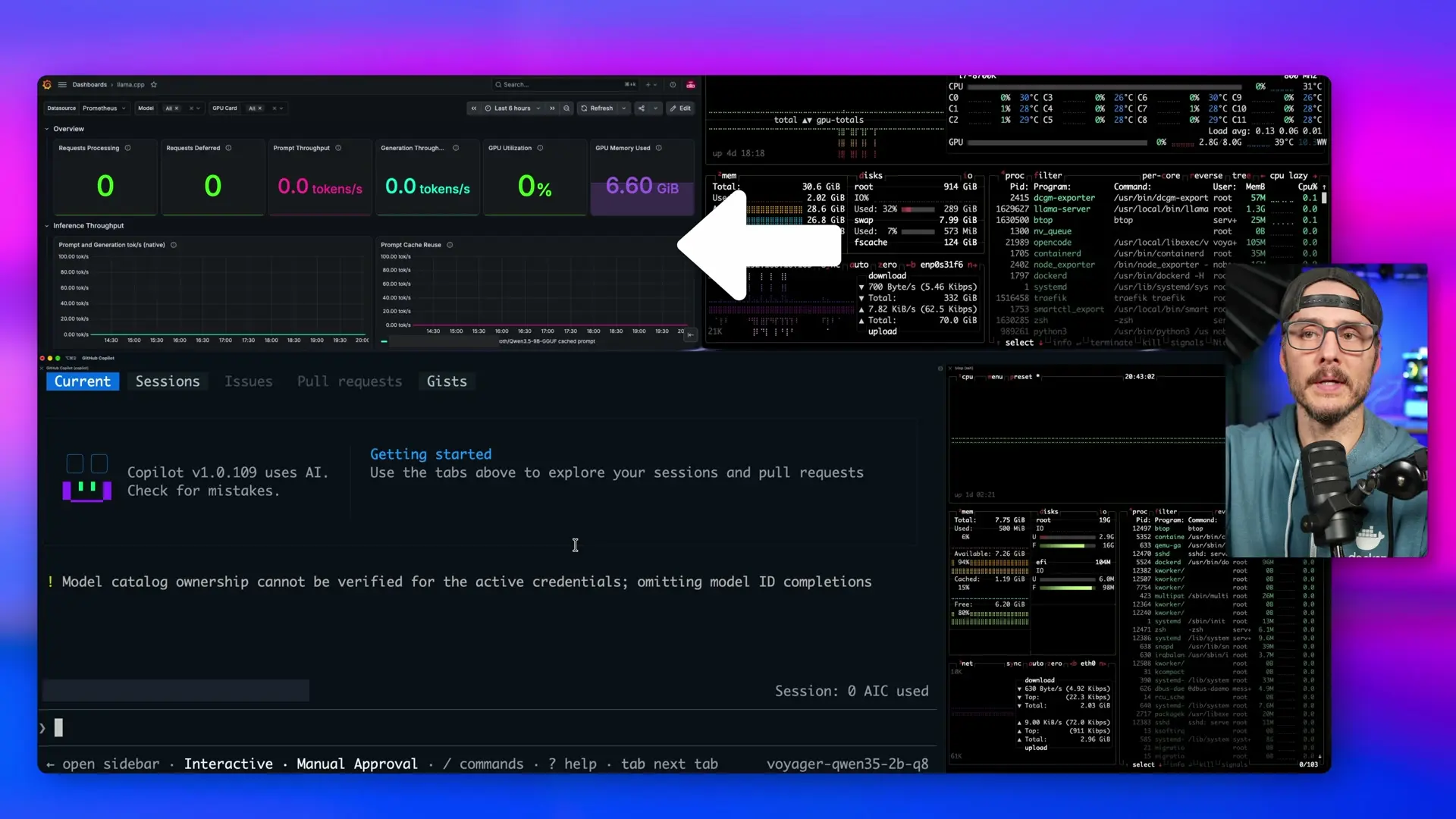 I kept Copilot CLI, Grafana, and btop open so I could watch the model and the test VM during each run.
Qwen3.5-2B kept trying the wrong server
I started with Qwen3.5-2B. It generated around 82 tokens per second in my testing, and it responded quickly enough that I was hoping it could handle a straightforward deployment.
It read some of the instructions and looked at my SSH configuration, but then repeatedly tried to connect to the wrong IP address. The correct address was in the prompt and the configuration it had just read. It would wait for the connection attempt, get nowhere, and try again.
I tried a few smaller questions to see what it could do. Asking it about a specific file was much easier for it. But when I asked it to explain the repository, it got stuck running git log over and over, asking for more history without turning that into a useful answer.
The deployment never happened. It was generating text quickly, but it wasn’t using the information in front of it well enough to get through the task.
I wouldn’t take that to mean a 2B model has no use on this machine. It could handle some of the narrower questions I gave it. But for this request, where it needed to read instructions, select a server, run commands, and check its work, I needed something more capable.
Running Qwen3.6-35B-A3B with 8 GB of VRAM
After the 2B attempt, I went in the other direction and tried Qwen3.6-35B-A3B. Trying a 35B model on this card felt a little ridiculous, but I wanted to see how far I could push the hardware I already had.
This model uses a mixture of experts, or MoE. It has about 35 billion parameters in total, with roughly 3 billion active for each token. It selects a portion of its experts as it works, which reduces the computation needed for each token. The remaining weights still need to be available somewhere, though, so that 3B active count doesn’t mean the model fits in the same amount of memory as a 3B model.
At 16 bits per weight, 35 billion parameters would take roughly 70 GB just for the weights. The quantized version I was using was about 17.7 GB, which was still much larger than the card’s 8 GB of VRAM. Quantization reduces the space used to store the weights, but it doesn’t remove the need for memory to hold context and the other data used during inference.
I kept most of the expert weights in system RAM and left as much as I could on the GPU. llama.cpp has controls for placing MoE weights on the CPU, which made this possible with the 32 GB of RAM in Voyager. Both the CPU and GPU were involved in running this model.
Waiting for the first response
In my earlier testing, this model generated around 25 tokens per second. I knew it would be slower to produce text, but the initial wait was much more noticeable than that number suggests.
I sent the deployment prompt and watched the GPU and CPU start working. A minute passed, then two. It took more than three minutes before the agent started showing useful activity.
Part of that wait was processing the input. Before the model can answer, it has to work through the prompt and the context supplied by the agent. In separate prompt-processing tests, I saw around 170 input tokens per second on the 35B model, compared with around 710 on the 9B model. Those measurements help explain why a model that can generate text at a usable speed can still take a while to begin a new request.
Once it started, it deployed the service
After that long wait, the 35B model found the right server and SSH identity, checked the existing containers, and deployed OpenSpeedTest. It checked that the container was running, tested the HTTP endpoint on port 3000, and returned the URL.
It also configured Docker’s unless-stopped restart policy. That lets Docker handle the container after a daemon restart while respecting an intentional stop. It covered the requested restart behavior without adding another service to manage the container.
I opened the URL from my machine and ran a speed test against the VM in my colo. The application worked. The deployment took just under five minutes from start to finish, including the wait of more than three minutes at the beginning.
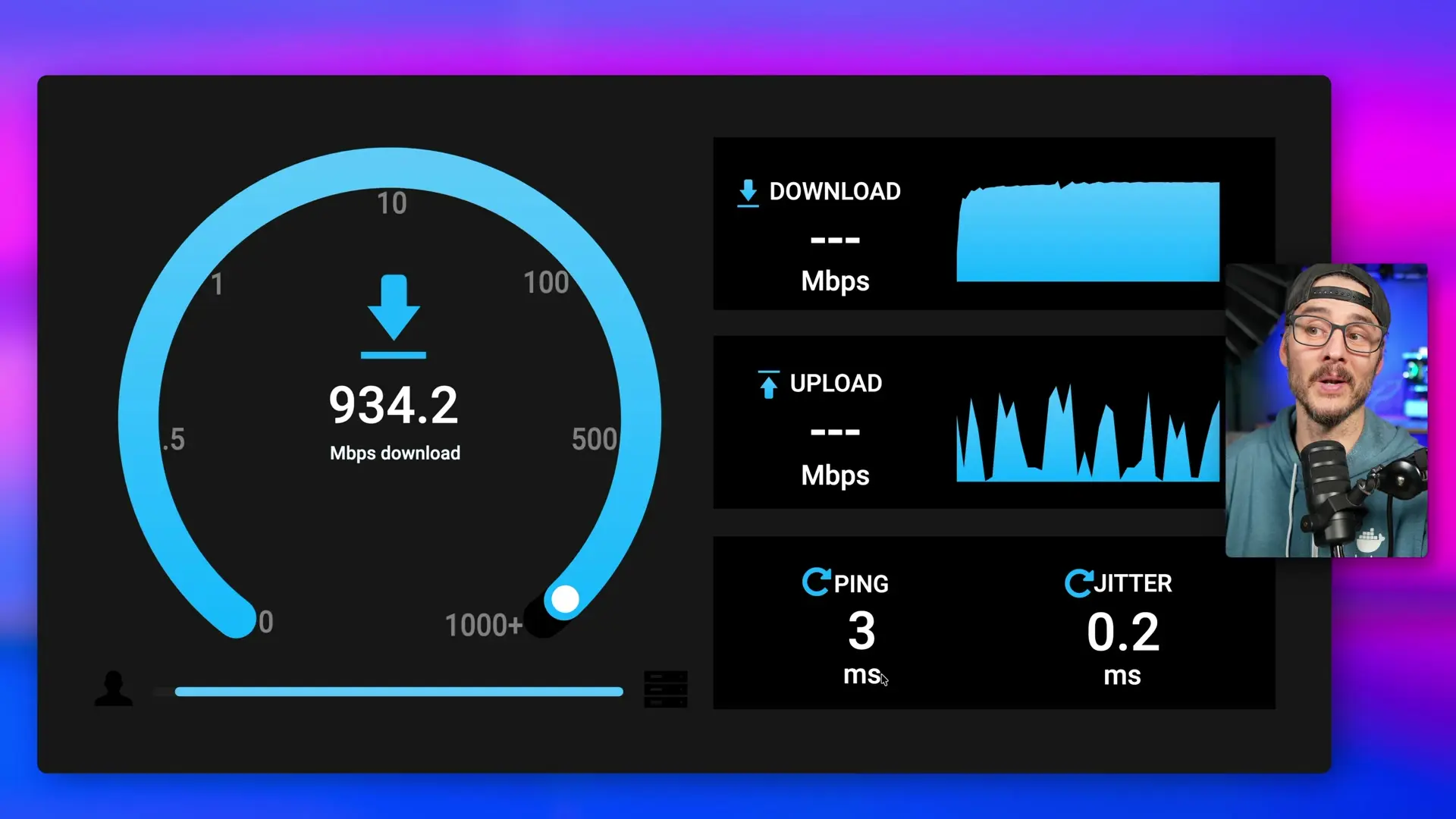 The 35B model deployed OpenSpeedTest, and I verified the application from my own machine.
When I asked it to explain the repository afterward, it gave me a useful description of the GitOps and Ansible work, the home and colo environments, and the services managed there. The follow-up started much more quickly, and Grafana showed prompt-cache reuse. Reusing some of that earlier context appeared to help, although a new session or a substantially different prompt could still bring back the long initial wait.
Qwen3.5-9B took a longer route
Qwen3.5-9B was the model I expected to be the sweet spot. It was more capable than the 2B model, ran more comfortably on this hardware than the 35B, and generated around 32 tokens per second in my testing.
It started working after about 50 seconds. It found the test machine, selected the account and SSH key, checked for Docker, and pulled the container image. That was already a better start than the 2B attempt.
Then it ran into a few problems. It tried to create the deployment under /opt without the permissions it needed, moved the files into the home directory, and tried the older docker-compose command before switching to docker compose.
Those were recoverable mistakes, and it did work past them. The port configuration took much longer.
Finding the port the container actually used
The container was running, but the service wasn’t responding where the agent expected it. It kept testing port 8080 while the Compose port configuration didn’t match the port OpenSpeedTest was listening on inside the container.
It tried curl, then wget, checked networking and firewall rules, looked at container details, and tried other ways to connect. It also investigated SELinux and AppArmor. There was plenty of activity, but several minutes passed before it followed the problem back to the service configuration.
Eventually it inspected the Nginx configuration inside the container and found the listeners on ports 3000 and 3001. It corrected the Compose configuration and got a working HTTP response.
 The published port needed to map to the port OpenSpeedTest was listening on inside the container.
A host port can be different from the port inside a container. Using 8080 on the host would have been fine if it had been mapped to the right container port. The problem was the mismatch between the published configuration and the service’s actual listener.
Adding another service created another problem
After getting OpenSpeedTest working, the model tried to create a systemd service to manage it. A Docker restart policy could have handled the restart behavior I had asked for. Docker recommends using restart policies for this purpose.
The additional systemd service didn’t start correctly, even though the agent’s final report said everything was working. OpenSpeedTest itself was reachable, and I could run the speed test in my browser, but the final configuration still had an issue.
The whole attempt took almost thirteen minutes. It eventually got the application running, but it spent a lot of time correcting its own deployment and added work that wasn’t needed to satisfy the request.
Its explanation of the repository afterward was much better. It identified the GitOps structure, the Kubernetes manifests, and several of the machines and services managed by the project. That follow-up was useful, even though the deployment had taken a few turns I wasn’t expecting.
How the results compared
The approximate token rates came from my performance tests, while the times below are from the recorded deployments. Those elapsed times include the initial wait and the work performed through the agent’s tools.
| Model | Approximate generation rate | Deployment time | Result |
|---|---|---|---|
| Qwen3.5-2B | 82 tokens/s | Did not complete | Repeatedly tried the wrong server |
| Qwen3.6-35B-A3B | 25 tokens/s | 4 minutes 58 seconds | Deployed OpenSpeedTest and verified access |
| Qwen3.5-9B | 32 tokens/s | 12 minutes 41 seconds | Got OpenSpeedTest running, but left an issue with the extra systemd service |
The 9B model took about two and a half times as long as the 35B model. It was faster to respond and faster to generate text, but the mistakes and troubleshooting used up more time than it saved. The 35B model spent a long time processing the initial request, then got through the deployment with very few detours.
I ran this deployment once per model. The 35B also comes from a newer Qwen generation and uses MoE, so I can’t put the difference down to size alone. I wouldn’t assume it will finish ahead on every task.
It did change what I look for when testing an agent. Tokens per second helps describe how responsive a model feels once it starts answering. I also want to know how long it takes to begin, how much time it spends recovering from mistakes, and whether the final result matches what it says it did.
Running the models with Docker Compose
On Voyager, I manage these containers through Ansible and systemd. The examples below adapt my saved model profiles to Docker Compose.
They keep the model files, llama.cpp revisions, context settings, and offload options from those profiles. The examples use a local models directory, a generated API key, and port 18080 on the GPU host. You can choose any one of the three models to start with.
| Model | GGUF quantization | Model download | llama.cpp revision |
|---|---|---|---|
| Qwen3.5-2B | Q8_0 | 2.01 GB | 29c720e |
| Qwen3.5-9B | Q4_K_M | 5.68 GB | 29c720e |
| Qwen3.6-35B-A3B | UD-IQ4_XS | 17.73 GB | 69ee2ecc, build b12144 |
Those sizes are the model files on disk. The server also needs memory for its context and working buffers. Voyager has 32 GB of system RAM. Downloading all three takes about 25.4 GB before the CUDA images and build files.
If you keep your model files on an NFS share, I wrote about caching NFS files locally with FS-Cache to cut down on repeated reads over the network.
Check Docker’s access to the GPU
These examples are for an x86-64 Linux machine with the GTX 1080, Docker Engine, the Compose plugin, and the NVIDIA Container Toolkit. The host also needs curl, openssl, sha256sum, and Python 3 for the commands below. Keep a Pascal-compatible proprietary NVIDIA driver on the host. Voyager used the R580 driver branch.
Check the host and then check the GPU from inside a CUDA container.
1
2
3
4
5
nvidia-smi
docker compose version
docker run --rm --gpus all \
  nvidia/cuda:12.9.2-devel-ubuntu24.04@sha256:16656a1ef115bca9e1f820c6349876f1486d2b3c9a0e615773799fe402960dc5 \
  nvidia-smi
Both nvidia-smi commands should identify the GTX 1080. If the host sees the card but the container doesn’t, fix the Container Toolkit configuration before building llama.cpp. Docker’s GPU documentation explains the device reservation used in each Compose file.
Create the shared files
Make a directory for the Compose files and generate a local API key.
1
2
3
4
5
6
7
8
mkdir -p ~/gtx1080-llamacpp
cd ~/gtx1080-llamacpp
mkdir -p models secrets
chmod 700 secrets

if [ ! -s secrets/llama-api-key ]; then
  (umask 077; openssl rand -hex 32 > secrets/llama-api-key)
fi
Save the following as Dockerfile. It uses CUDA 12.9.2 and compiles for architecture 61. Each Compose file supplies its pinned llama.cpp commit. The container uses curl for the health check.
1
2
3
4
5
6
7
8
9
10
11
12
13
14
15
16
17
18
19
20
21
22
23
24
25
26
27
28
29
30
31
32
33
34
35
36
37
38
39
40
41
42
43
44
45
46
# CUDA 13.x dropped Maxwell/Pascal/Volta, so sm_61 (GTX 1080) no longer builds.
# Keep the 12.9-series base until the GPU fleet is Pascal-free.
FROM nvidia/cuda:12.9.2-devel-ubuntu24.04@sha256:16656a1ef115bca9e1f820c6349876f1486d2b3c9a0e615773799fe402960dc5

ARG LLAMA_CPP_COMMIT
ARG CUDA_ARCHITECTURES=61

LABEL org.opencontainers.image.title="GTX 1080 llama.cpp server" \
      org.opencontainers.image.revision="${LLAMA_CPP_COMMIT}" \
      org.opencontainers.image.cuda-architecture="sm_${CUDA_ARCHITECTURES}"

ENV DEBIAN_FRONTEND=noninteractive

RUN apt-get update \
    && apt-get install --yes --no-install-recommends \
        build-essential \
        ca-certificates \
        cmake \
        curl \
        git \
        libcurl4-openssl-dev \
        pkg-config \
    && rm -rf /var/lib/apt/lists/*

WORKDIR /src

RUN ln -sf /usr/local/cuda/lib64/stubs/libcuda.so /usr/local/cuda/lib64/stubs/libcuda.so.1 \
    && git clone --filter=blob:none https://github.com/ggml-org/llama.cpp.git \
        /src/llama.cpp \
    && git -C /src/llama.cpp checkout --detach "${LLAMA_CPP_COMMIT}" \
    && cmake -S /src/llama.cpp -B /src/llama.cpp/build \
        -DCMAKE_BUILD_TYPE=Release \
        -DCMAKE_CUDA_ARCHITECTURES="${CUDA_ARCHITECTURES}" \
        -DCMAKE_EXE_LINKER_FLAGS="-L/usr/local/cuda/lib64/stubs -Wl,-rpath-link,/usr/local/cuda/lib64/stubs" \
        -DGGML_CUDA=ON \
        -DGGML_NATIVE=OFF \
        -DGGML_VULKAN=OFF \
        -DLLAMA_BUILD_SERVER=ON \
    && cmake --build /src/llama.cpp/build --target llama-server --parallel 2 \
    && install -m 0755 /src/llama.cpp/build/bin/llama-server /usr/local/bin/llama-server \
    && cp -a /src/llama.cpp/build/bin/*.so* /usr/local/lib/ \
    && ldconfig \
    && rm -f /usr/local/cuda/lib64/stubs/libcuda.so.1 \
    && rm -rf /src/llama.cpp

ENTRYPOINT ["/usr/local/bin/llama-server"]
The build uses two compilation jobs to keep memory use down on this older machine. The 2B and 9B examples share the same image. The 35B example builds its separate revision, which includes the expert-cache option used in that profile.
Save this as .dockerignore so Docker doesn’t send the downloaded models and API key into the build context.
1
2
**
!Dockerfile
All three examples use the same Compose project, service name, and host port. Run one model at a time on the GTX 1080. Each YAML file is a complete alternative, so use one -f argument when starting it. The model-switching commands are below the examples.
The shared settings use a configured context of 131072 tokens, Q4_0 K/V cache, one inference slot, Flash Attention, and --jinja for tool calling. Reasoning is disabled to match the saved profiles. --cache-ram 0 disables the separate RAM-backed prompt-state cache. It still allows reuse of a prompt prefix that remains in the active slot.
Qwen3.5-2B with Q8_0 weights
The 2B model uses full GPU offload. Download the pinned Unsloth GGUF and check its SHA-256 before starting the container.
1
2
3
4
5
6
7
curl --fail --location --retry 5 --continue-at - \
  --output models/Qwen3.5-2B-Q8_0.gguf \
  https://huggingface.co/unsloth/Qwen3.5-2B-GGUF/resolve/f6d5376be1edb4d416d56da11e5397a961aca8ae/Qwen3.5-2B-Q8_0.gguf

printf '%s  %s\n' \
  '1b04acba824817554f4ce23639bc8495ff70453b8fcb047900c731521021f2c1' \
  'models/Qwen3.5-2B-Q8_0.gguf' | sha256sum --check
The checksum command should report OK. Save the following as compose.qwen35-2b.yaml.
1
2
3
4
5
6
7
8
9
10
11
12
13
14
15
16
17
18
19
20
21
22
23
24
25
26
27
28
29
30
31
32
33
34
35
36
37
38
39
40
41
42
43
44
45
46
47
48
49
50
51
52
53
54
55
56
57
58
59
60
61
62
63
64
65
66
67
68
69
70
71
72
73
74
75
76
77
78
79
80
81
82
83
84
85
86
name: gtx1080-llamacpp

services:
  llama-server:
    image: local/llama.cpp:29c720e-sm61
    pull_policy: never
    platform: linux/amd64
    build:
      context: .
      dockerfile: Dockerfile
      args:
        LLAMA_CPP_COMMIT: "29c720eaf72fcf8e4e61a56a88b994d92668261d"
        CUDA_ARCHITECTURES: "61"
    init: true
    restart: unless-stopped
    stop_grace_period: 45s
    ports:
      - "127.0.0.1:18080:8080"
    volumes:
      - type: bind
        source: ./models
        target: /models
        read_only: true
        bind:
          create_host_path: false
    secrets:
      - llama_api_key
    deploy:
      resources:
        reservations:
          devices:
            - driver: nvidia
              device_ids: ["0"]
              capabilities: [gpu]
    command:
      - "--model"
      - "/models/Qwen3.5-2B-Q8_0.gguf"
      - "--alias"
      - "voyager-qwen35-2b-q8"
      - "--host"
      - "0.0.0.0"
      - "--port"
      - "8080"
      - "--api-key-file"
      - "/run/secrets/llama_api_key"
      - "--ctx-size"
      - "131072"
      - "--cache-ram"
      - "0"
      - "--n-gpu-layers"
      - "999"
      - "--split-mode"
      - "none"
      - "--batch-size"
      - "512"
      - "--ubatch-size"
      - "128"
      - "--flash-attn"
      - "on"
      - "--parallel"
      - "1"
      - "--no-cont-batching"
      - "--cache-type-k"
      - "q4_0"
      - "--cache-type-v"
      - "q4_0"
      - "--temp"
      - "0"
      - "--top-p"
      - "1"
      - "--seed"
      - "20261104"
      - "--reasoning"
      - "off"
      - "--jinja"
      - "--metrics"
    healthcheck:
      test: ["CMD", "curl", "--fail", "--silent", "http://127.0.0.1:8080/health"]
      interval: 10s
      timeout: 5s
      retries: 12
      start_period: 5m

secrets:
  llama_api_key:
    file: ./secrets/llama-api-key
After stopping any other model, build and start this one. The first build can take a while.
1
2
3
docker compose -f compose.qwen35-2b.yaml config --quiet
docker compose -f compose.qwen35-2b.yaml up -d --build --wait --wait-timeout 600
docker compose -f compose.qwen35-2b.yaml logs --tail 80 llama-server
Qwen3.5-9B with Q4_K_M weights
This is the 9B configuration I kept as Voyager’s managed default. It uses the same llama.cpp image as the 2B model, with the larger Q4_K_M GGUF fully offloaded to the GPU. The Q4_0 K/V cache is part of the saved 128K configuration.
1
2
3
4
5
6
7
curl --fail --location --retry 5 --continue-at - \
  --output models/Qwen3.5-9B-Q4_K_M.gguf \
  https://huggingface.co/unsloth/Qwen3.5-9B-GGUF/resolve/3885219b6810b007914f3a7950a8d1b469d598a5/Qwen3.5-9B-Q4_K_M.gguf

printf '%s  %s\n' \
  '03b74727a860a56338e042c4420bb3f04b2fec5734175f4cb9fa853daf52b7e8' \
  'models/Qwen3.5-9B-Q4_K_M.gguf' | sha256sum --check
The checksum command should report OK. Save the following as compose.qwen35-9b.yaml.
1
2
3
4
5
6
7
8
9
10
11
12
13
14
15
16
17
18
19
20
21
22
23
24
25
26
27
28
29
30
31
32
33
34
35
36
37
38
39
40
41
42
43
44
45
46
47
48
49
50
51
52
53
54
55
56
57
58
59
60
61
62
63
64
65
66
67
68
69
70
71
72
73
74
75
76
77
78
79
80
81
82
83
84
85
86
name: gtx1080-llamacpp

services:
  llama-server:
    image: local/llama.cpp:29c720e-sm61
    pull_policy: never
    platform: linux/amd64
    build:
      context: .
      dockerfile: Dockerfile
      args:
        LLAMA_CPP_COMMIT: "29c720eaf72fcf8e4e61a56a88b994d92668261d"
        CUDA_ARCHITECTURES: "61"
    init: true
    restart: unless-stopped
    stop_grace_period: 45s
    ports:
      - "127.0.0.1:18080:8080"
    volumes:
      - type: bind
        source: ./models
        target: /models
        read_only: true
        bind:
          create_host_path: false
    secrets:
      - llama_api_key
    deploy:
      resources:
        reservations:
          devices:
            - driver: nvidia
              device_ids: ["0"]
              capabilities: [gpu]
    command:
      - "--model"
      - "/models/Qwen3.5-9B-Q4_K_M.gguf"
      - "--alias"
      - "voyager-qwen35-9b-q4km"
      - "--host"
      - "0.0.0.0"
      - "--port"
      - "8080"
      - "--api-key-file"
      - "/run/secrets/llama_api_key"
      - "--ctx-size"
      - "131072"
      - "--cache-ram"
      - "0"
      - "--n-gpu-layers"
      - "999"
      - "--split-mode"
      - "none"
      - "--batch-size"
      - "512"
      - "--ubatch-size"
      - "128"
      - "--flash-attn"
      - "on"
      - "--parallel"
      - "1"
      - "--no-cont-batching"
      - "--cache-type-k"
      - "q4_0"
      - "--cache-type-v"
      - "q4_0"
      - "--temp"
      - "0"
      - "--top-p"
      - "1"
      - "--seed"
      - "20261104"
      - "--reasoning"
      - "off"
      - "--jinja"
      - "--metrics"
    healthcheck:
      test: ["CMD", "curl", "--fail", "--silent", "http://127.0.0.1:8080/health"]
      interval: 10s
      timeout: 5s
      retries: 12
      start_period: 5m

secrets:
  llama_api_key:
    file: ./secrets/llama-api-key
After stopping any other model, build and start this one. The first build can take a while.
1
2
3
docker compose -f compose.qwen35-9b.yaml config --quiet
docker compose -f compose.qwen35-9b.yaml up -d --build --wait --wait-timeout 600
docker compose -f compose.qwen35-9b.yaml logs --tail 80 llama-server
Qwen3.6-35B-A3B with UD-IQ4_XS weights
This is the 17.7 GB version used by the saved 35B demo profile. Use the UD-IQ4_XS file shown below, including the UD- prefix, to match my saved profile.
The profile uses --n-cpu-moe 35 to keep the expert weights from the first 35 layers on the CPU. It leaves eligible remaining tensors on the GPU and allocates a 2816 MiB GPU cache for CPU-resident expert weights. I set both CPU thread options to six on Voyager’s i7-8700K.
The context is set to 131072 tokens. This deployment only shows how it handled the prompt I used, and long prompts can take several minutes to process.
1
2
3
4
5
6
7
curl --fail --location --retry 5 --continue-at - \
  --output models/Qwen3.6-35B-A3B-UD-IQ4_XS.gguf \
  https://huggingface.co/unsloth/Qwen3.6-35B-A3B-GGUF/resolve/a483e9e6cbd595906af30beda3187c2663a1118c/Qwen3.6-35B-A3B-UD-IQ4_XS.gguf

printf '%s  %s\n' \
  '649d7508507b84638732c4f52c24c8b15843c6dca2f3ff793ae07c14a67ebbb3' \
  'models/Qwen3.6-35B-A3B-UD-IQ4_XS.gguf' | sha256sum --check
The checksum command should report OK. Save the following as compose.qwen36-35b.yaml.
1
2
3
4
5
6
7
8
9
10
11
12
13
14
15
16
17
18
19
20
21
22
23
24
25
26
27
28
29
30
31
32
33
34
35
36
37
38
39
40
41
42
43
44
45
46
47
48
49
50
51
52
53
54
55
56
57
58
59
60
61
62
63
64
65
66
67
68
69
70
71
72
73
74
75
76
77
78
79
80
81
82
83
84
85
86
87
88
89
90
91
92
93
94
95
96
name: gtx1080-llamacpp

services:
  llama-server:
    image: local/llama.cpp:qwen36-b12144-sm61
    pull_policy: never
    platform: linux/amd64
    build:
      context: .
      dockerfile: Dockerfile
      args:
        LLAMA_CPP_COMMIT: "69ee2ecc0150ba7d1204a7f7393dfd651569db8c"
        CUDA_ARCHITECTURES: "61"
    init: true
    restart: unless-stopped
    stop_grace_period: 45s
    ports:
      - "127.0.0.1:18080:8080"
    volumes:
      - type: bind
        source: ./models
        target: /models
        read_only: true
        bind:
          create_host_path: false
    secrets:
      - llama_api_key
    deploy:
      resources:
        reservations:
          devices:
            - driver: nvidia
              device_ids: ["0"]
              capabilities: [gpu]
    command:
      - "--model"
      - "/models/Qwen3.6-35B-A3B-UD-IQ4_XS.gguf"
      - "--alias"
      - "voyager-qwen36-35b-a3b-ud-iq4xs"
      - "--host"
      - "0.0.0.0"
      - "--port"
      - "8080"
      - "--api-key-file"
      - "/run/secrets/llama_api_key"
      - "--ctx-size"
      - "131072"
      - "--cache-ram"
      - "0"
      - "--n-gpu-layers"
      - "all"
      - "--n-cpu-moe"
      - "35"
      - "--moe-cache-mib"
      - "2816"
      - "--threads"
      - "6"
      - "--threads-batch"
      - "6"
      - "--split-mode"
      - "none"
      - "--batch-size"
      - "512"
      - "--ubatch-size"
      - "128"
      - "--flash-attn"
      - "on"
      - "--fit"
      - "off"
      - "--parallel"
      - "1"
      - "--no-cont-batching"
      - "--cache-type-k"
      - "q4_0"
      - "--cache-type-v"
      - "q4_0"
      - "--temp"
      - "0"
      - "--top-p"
      - "1"
      - "--seed"
      - "20261104"
      - "--reasoning"
      - "off"
      - "--jinja"
      - "--metrics"
    healthcheck:
      test: ["CMD", "curl", "--fail", "--silent", "http://127.0.0.1:8080/health"]
      interval: 10s
      timeout: 5s
      retries: 12
      start_period: 5m

secrets:
  llama_api_key:
    file: ./secrets/llama-api-key
After stopping any other model, build and start this one. The first build can take a while.
1
2
3
docker compose -f compose.qwen36-35b.yaml config --quiet
docker compose -f compose.qwen36-35b.yaml up -d --build --wait --wait-timeout 600
docker compose -f compose.qwen36-35b.yaml logs --tail 80 llama-server
Switch models and check the API
Stop the active model before starting another one. For example, switching from 2B to 35B looks like this after both model files are downloaded.
1
2
docker compose -f compose.qwen35-2b.yaml down
docker compose -f compose.qwen36-35b.yaml up -d --build --wait --wait-timeout 600
The selected container uses unless-stopped, so Docker starts that container again after a reboot unless you stopped it. This Compose version keeps whichever model you last started. My managed Voyager configuration separately restores the 9B profile at boot.
The server listens on port 8080 inside the container and is published at 127.0.0.1:18080 on the host. A healthy container means the server has finished loading the model. It doesn’t tell you how quickly the model will answer a large agent prompt.
Run these commands from the same directory on the GPU host. They check readiness, discover the active model alias, and request a short streamed response.
1
2
3
4
5
6
7
8
9
10
11
12
13
14
15
16
17
18
19
20
21
22
23
24
25
26
LLAMA_API_KEY="$(cat secrets/llama-api-key)"

curl --fail --silent --show-error http://127.0.0.1:18080/health

curl --fail --silent --show-error \
  -H "Authorization: Bearer $LLAMA_API_KEY" \
  http://127.0.0.1:18080/v1/models

LLAMA_MODEL="$(curl --fail --silent --show-error \
  -H "Authorization: Bearer $LLAMA_API_KEY" \
  http://127.0.0.1:18080/v1/models \
  | python3 -c 'import json, sys; print(json.load(sys.stdin)["data"][0]["id"])')"

curl --fail --silent --show-error --no-buffer \
  -H "Authorization: Bearer $LLAMA_API_KEY" \
  -H "Content-Type: application/json" \
  http://127.0.0.1:18080/v1/chat/completions \
  --data @- <<JSON
{
  "model": "$LLAMA_MODEL",
  "messages": [{"role": "user", "content": "Say hello in one short sentence."}],
  "max_tokens": 64,
  "temperature": 0,
  "stream": true
}
JSON
/health should return {"status":"ok"}. /v1/models should list the alias from the Compose file you started. The chat request should return streamed data: events and finish with [DONE].
Check tool-call formatting before connecting the agent. This request defines one small test function and asks the model to call it.
1
2
3
4
5
6
7
8
9
10
11
12
13
14
15
16
17
18
19
20
21
22
23
24
25
26
curl --fail --silent --show-error \
  -H "Authorization: Bearer $LLAMA_API_KEY" \
  -H "Content-Type: application/json" \
  http://127.0.0.1:18080/v1/chat/completions \
  --data @- <<JSON
{
  "model": "$LLAMA_MODEL",
  "messages": [{"role": "user", "content": "Call check_connection with the message hello."}],
  "tools": [{
    "type": "function",
    "function": {
      "name": "check_connection",
      "description": "Return the supplied message to confirm a tool call.",
      "parameters": {
        "type": "object",
        "properties": {"message": {"type": "string"}},
        "required": ["message"],
        "additionalProperties": false
      }
    }
  }],
  "tool_choice": "required",
  "max_tokens": 128,
  "temperature": 0
}
JSON
Look for choices[0].message.tool_calls containing check_connection and its message argument. This checks the response format. The agent is responsible for executing the tool and sending its result back to the model.
For an OpenAI-compatible client on the GPU host, use http://127.0.0.1:18080/v1, the key in secrets/llama-api-key, and the alias returned by /v1/models.
My recorded run used an authenticated HTTPS endpoint from my Mac. If you want to try these examples from another computer without configuring a reverse proxy, forward the local port over SSH. Replace your-user@your-gpu-server with your SSH destination and leave this command running on the client computer.
1
2
ssh -N -o ExitOnForwardFailure=yes \
  -L 18080:127.0.0.1:18080 your-user@your-gpu-server
The client can then use the same http://127.0.0.1:18080/v1 base URL through the tunnel, with the same API key and model alias. The Compose port remains bound to loopback on the GPU host.
If a model doesn’t start
Check the selected service’s logs first. For the 35B example, use the commands below.
1
2
3
docker compose -f compose.qwen36-35b.yaml ps
docker compose -f compose.qwen36-35b.yaml logs --tail 200 llama-server
nvidia-smi
| What you see | What to check |
|---|---|
| Docker can’t select the NVIDIA device driver | Confirm the Container Toolkit is installed and the CUDA container check works. |
no kernel image is available or an unsupported architecture error | Confirm the image was built with CUDA 12.9 and CUDA_ARCHITECTURES=61. Rebuild the selected Compose image if you changed the Dockerfile. |
| A missing GGUF file | Compare the filename in --model with the file in models, including UD- for the 35B model. |
| CUDA out of memory | Stop any other GPU workload and check nvidia-smi. Keep the supplied K/V types and offload settings. If you reduce --ctx-size to fit your machine, that changes the configuration you’re comparing. |
An unknown --moe-cache-mib option | The 35B container needs the pinned 69ee2ecc build from its Compose file. |
HTTP 401 from /v1/models or chat | Send the exact key stored in secrets/llama-api-key as the bearer token. |
/health returns 503 | The model is still loading. Watch the logs for progress or a load error. |
The 35B model also needs enough free system RAM for its CPU-resident weights. If the host starts swapping heavily, the delay can be much longer than the results I saw on Voyager.
Would I use this as a homelab agent?
I probably wouldn’t choose to run the 35B model this way every day if I had other hardware available. Waiting more than three minutes for the first response is rough, especially when I’m trying to work interactively. Faster follow-up requests help, but they don’t make that initial delay disappear.
If the GTX 1080 were the only card I had, though, the 35B model is the one I’d choose for the kind of deployment I tested here. It found the right machine, deployed a working service, and gave me a useful explanation of the repository. The CPU and system RAM helped make that possible on a card with only 8 GB of VRAM.
I’d still try smaller models for narrower jobs. The 2B model handled some of the simpler file questions. I’d want to test the actual task before deciding it needed a much larger model or a newer GPU.
That’s what I like about experimenting with hardware I already own. I spent around $680 on this card in 2016, used it for gaming, streaming, and editing videos, and now I’m trying to make it help run my homelab. Ten years later, I’m still finding things to do with it, and I think that’s pretty cool.